FAQs
FAQ Subject
No. There is no need to have a Mobile IP server for MAP-3120.
The MAP-3120 is a layer 2 bridge that with dual RF interfaces bridging in between.
The bridging algorithm is base on layer 2 MAC address. So, it is protocol independent device that always follow layer 2 MAC address to forward or not forward the packets between the two interfaces (Interface of LAN/WiFi and interface of backhaul).
Whenever the mobile worker change to another MAP-3120 and this MAP-3120 learned about this new client (new MAC address), then it will start to forward packets to the destinations.
Regarding this detail descriptions, it is suggested to download the product FAQ.
 FAQ_WNAP-6325_How to setup AP-Client & WDS Connection.pdf
No. The circuit design of WNAP-6305 is different from others since it has added an extra reset button on PoE Injector. Users MUST use the PoE Injector shipped with the WNAP-6305; Otherwise, it will cause damage to the WNAP-6305.
1) Power off the WNAP-6305 first before connecting the external antenna to it.
2) Please use the extension cable (e.g. WL-SMA-0.6 or WL-SMA-6) with SMA-Type connector to WNAP-6305 and N connector to the outdoor N-Type antenna.
3) Power on the WNAP-6305, and then configure Antenna Switch to
“External” in the Basic Wireless Settings page.
No. WNAP-1260 built-in power module with different regulations of AC power plug, which can be directly plugging into the wall outlet. WNAP-1260 supported American Standard and EU Regulation Power Plugs. Please order the proper type to meet your country's regulation.
Topology (WNAP-6306 acts as WISP Client):
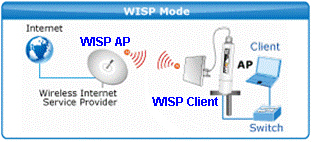
STEP1. Use static IP in the PCs that connected with WNAP-6306, in this case configured to “192.168.1.100”.
※ Please be note that the IP address of PC should be configured to the same IP segment as WNAP-6306.

STEP2. Login to the Web page of the WNAP-6306. Then, go to “Internet Setup-> WISP Status” to enable WISP mode.
Before configure the WISP connection, you should check the following settings with your ISP:
1) The SSID of the WISP AP
2) The encryption method and security key of the WISP AP
3) The WAN connection type

STEP3. Click “AP Scan” to find the WISP AP, and then select it to establish the connection.
In this case, the WISP AP has encrypted to WPA2-PSK, so, you have to configure the Security key in next step.

STEP4. In Authentication Type, select “WPA2 PSK”, and then select the Encryption Type and enter the Key.

STEP5. In WAN connection type, select “DHCP user (Cable Modem)”, and then save and apply the setting.
In this case, the WAN type is DHCP.

STEP6. Modify the TCP/IP settings of PC to “Obtain an IP address automatically”.

STEP7. After get the IP assigned by DHCP Server, use command line tool to ping DNS server to ensure the internet connection are established successfully.
Note:
1)The WAN connection type should be configured properly so that the Client can access internet via WNAP-6306 successfully.
2)The encryption method and the security key should be the same as WISP AP.
3)The DHCP server should be enabled in WNAP-6306.

For Outdoor AP installation, PLANET is with a set of cable for the wiring.
The WAP-6000 or WAP-7000 attaches one cable to one set of antenna, MAP-2000/2000R attaches two cables for two RF connectors.
And the connection diagram can be as below.

Example:
Figure1:

Figure 2: extend cable

Add booster (for example: WBT-1000, figure is similar to the application as above.):




