FAQs
FAQ Subject
Execute the “IPM1200x Upgrade tool” program which can be found on the included CD-ROM, specify the IPM device and input the admin password (to obtain the upgrade access right) and then open the firmware file .bin to execute the upgrade.
The Simple Network Management Protocol (SNMP) is an application-layer protocol that facilitates the exchange of management information between network devices. It is a protocol designed to give a user the capability to remotely manage a computer network by polling and setting terminal values and monitoring network events.
With DHCP Server
1)Install the IPM-1200x after DHCP server.
2)Set the IP of PC to “Obtain an IP address automatically”.
3)Power ON the IPM-1200x.
4)Open IPM1200x Upgrade tool to search the IPM-1200x.
Not with DHCP Server
1)Power ON the IPM-1200x
2)Open the HyperTeminal to disable the BOOTP/DHCP Control via console port.

3)Set the static IP HyperTeminal.

4)Select the “Use the following IP address” and Set the static IP to PC.
5)Open IPM1200x Upgrade tool to search the IPM-1200x.
1) Power OFF the IPM-1200x.
2) Adjust the DIP Switch of IPM-1200x to Slave 01 at Manual mode.

3) Power ON the IPM-1200x.
4) Open the management web that can show the Slave 01 at the banner.

5) Go to the left panel and control the other IPM-1200x at the management web.

There are three ways to convert the video source, one is to use DIP switch, while the other is to set VLAN port and go with HDMI Splitter(Matrix).
1. A Tx (transmitter) supports DIP switch for 16 channels, and every time when you convert the source you have to switch DIP of all units to the same number, and then reboot all the units.

2. You could set VLAN to convert the video source, please refer to the topology below and imagine that the concept is based on your issue.

You can set up port-based VLAN for that Transmitter (IHD-200T), and then for the receiver (IHD-200R), You can just dynamically swap the receiver port to a different VLAN for video source change. You can swap VLAN via Web interface of the switch, say, WGSW-24040.
However, to be more faster and easier to swap the sources, you can consider using TELNET or RS232 Console via CLI (command line).
Since the commands are just fixed commands, you can record those commands into a macro, and just double click on specified macro, and then the commands will be sent to the switch in a very short time and swap your video source. By the way, in this setting, all the transmitter(s) and receiver should set as the same group.
Instructions about the topology above:
As for Test A, we set port1 and port3 to a VLAN, and set port2 and port4 to another VLAN. The Rx will convert the source if we change the connection of Rx and switch from port3 to port4.
As for Test B, , we set port1 and port3 to a VLAN, and the Rx will convert the source if we issue the command via telnet to set port2 and port3 to a VLAN.
3. You also could use HDMI Splitter(Matrix) to do the sources convert.

As you see, two sources connect to the input of HDMI Matrix, and output to Tx, then Tx and Rx all connect to the switch.
In this case, we use the HDMI Matrix controller to select the source, which one should be transmitted.
Please refer to the procedure below to reset default password to 00000000.
1. Please connect keyboard, mouse, and monitor to local console and plug in the power adapter.
2. You can see the screen on the monitor as shown below:

3. There is a small square aperture (as circled in red) on the bottom of the KVM as shown in the picture below.

4. You can see two pins in this small square aperture (as circled in red).
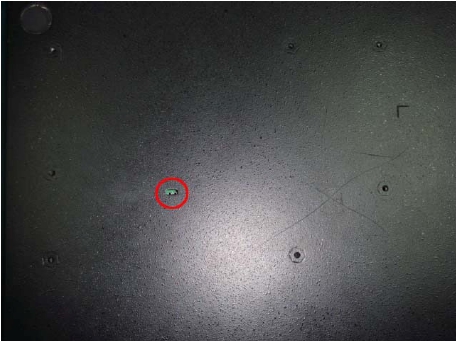
5. Please use a wire to make these two pins become short-circuited and then the password will reset to default.
Make sure the mouse settings in IKVM-8020 match the mouse model. There are some circumstances where the mouse synchronization process could behave incorrectly. Please refer to User Manual Section 4.3.1 on mouse handling for further explanation.




