FAQs
FAQ Subject
Please refer to the following steps to update and download file via WebDAV.
Step 1. Enable Web data access (Allow file upload and download) and WebDAV

Step 2. Create a folder at “File/Folder”.

Step 3. Go to Share Permissions and check all.

Step 4. Go to WebDAV

Step 5. Upload / Download file

Please refer to the following steps to make an FTP server.
Step 1. Create a name at “File/Folder”.
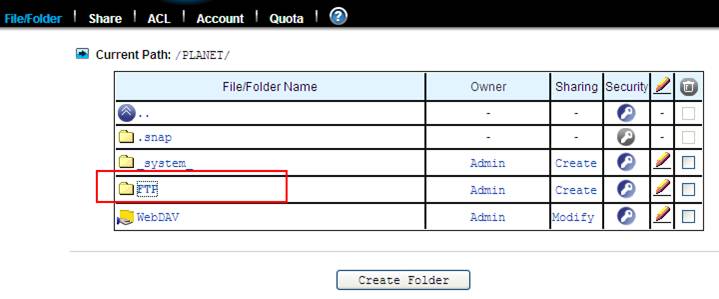
Step 2. Set the account
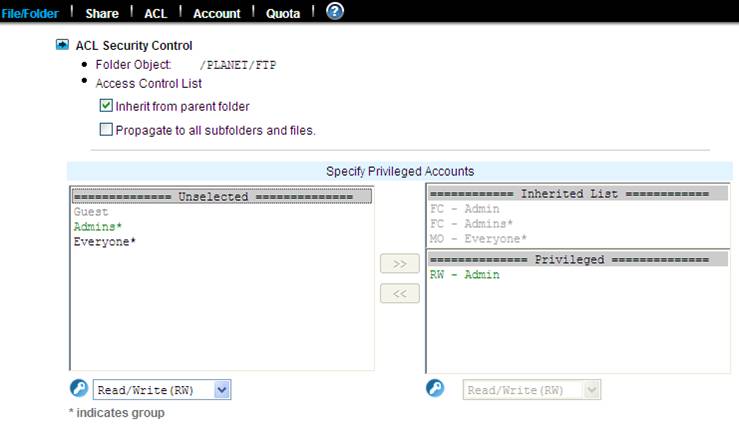
Step 3. Go to Share via Protocols and check all.

Step 4. Go to Share Permissions and check all.

Step 5. Enable FTP data access and Allow file upload and download.

Please refer to the following steps to add a hot spare HDD.
Step 1. Fill out a name in “Volume Name”.

Step 2. Select “Hot spare”

Step 3. Add the HDD to the “Volume Members”

Step 4. Go to File/Folder to create a Share name


Step 5. Go to Share Permissions and check all.

Yes, as long as they use the same firmware version (A5.1).
Yes, the firmware (A5.1) can be shared by both versions. The only difference between PoE version and non-PoE version is their PoE function.
Please refer to the document below and reset IKVM-8020 to default user name and password.
How to reset Defaults (via Serial Port)?
(1) Connect power to IP-KVM
(2) Connect Computer via Null modem cable
(3) Using Hyper Terminal to setup IP-KVM
a. Start -> Program -> Accessories -> Communication -> Hyper Terminal -> input Name of connection

b. Choose com port of your PC which you connect to IP-KVM

c. Setup COM port properties as below -> press OK to connect IP-KVM via serial port

d. Reset IP-KVM and immediately press the


e. Wait a few seconds, the following message will appear on the screen. Defaults was finished.

Regarding this detail descriptions, it is suggested to download the product and read the documentation for more understandings, thank you.
 FAQ-How to connect WTV-3000 at Windows 8.1.pdf




