FAQs
FAQ Subject
To factory reset the MAP-2100, please follow the steps bellows.
Step 1: Find the Restore Default DIP switch.
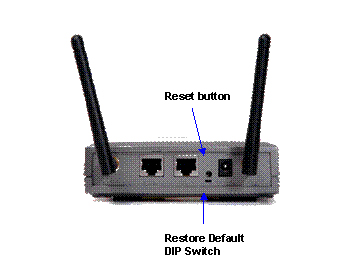
There are two switches on the real panel of MAP-2100.
One is reset push button and the other is slide switch.
The bottom one is the Restore Default DIP switch.
Step 2: Turn the Restore Default DIP switch to left.
By default, this DIP switch should stay at right for system normal operation. And turn to left will use default setting to boot up.

Step 3: Power on the MAP-2100 and check the web page
Power on the MAP-2100 and after the POST (Power On Selft Test) the system will use the default setting.
That is:
WAN: DHCP Client
LAN : DHCP Server (IP Range: 172.x.y.z; where x and y will follow the WAN MAC address)
You can either through WAN port or LAN port to make the management right away..
Once start up the Web page, you will be prompt for the Red Warning message on the Web page.

Step 4: Force Reset
From Web page, click on System Management, and then select Configuration.
And click on the “Factory Default” button.
It will prompt for Reboot.
Step 5: Power off the MAP-2100 and set back the DIP switch.
After power off the MAP-2100, please set the DIP switch back to its normal operation position. That is, turn the DIP to right.

Step 6: Power on the MAP-2100 and the MAP-2100 will get back to default setting.
Note:
1. Without setting back the DIP switch to right position, the Warning
message on the Web page will not be removed. At this mode, all the
settings will be lost the next time boot up.
2. It is also suggested that, memorize the system IP address, password
and all the necessary information like SSID etc. and keep it in a safe
place for system maintain purpose.
For Outdoor AP installation, PLANET is with a set of cable for the wiring.
The WAP-6000 or WAP-7000 attaches one cable to one set of antenna, MAP-2000/2000R attaches two cables for two RF connectors.
And the connection diagram can be as below.

Example:
Figure1:

Figure 2: extend cable

Add booster (for example: WBT-1000, figure is similar to the application as above.):

Planet WPG-210N/200N/130N supports iOS and Android phones/tablets via the third party app. Only powerpoint files and photos are applicable.
[iOS]
There is iPad/iPhone app available.
You can download the iPad/iPhone app “MobiShow” from the App Store.
Link:http://itunes.apple.com/us/app/mobishow-lite/id390141057?mt=8
[Android]
There is Android phone/tablet app available too.
Please refer to the following URL to download the same app “Mobishow” from Google play.
Link::https://play.google.com/store/apps/details?id=com.awindinc.mobishow
This third party software will connect your iOS and Android devices to the WPG-210N/200N/130N.

Please refer to the MAP-3120 application guide, it can be obtained from ftp://ftp.planet.com.tw/WirelessLAN/MAP-3120/MAP3K_AppGuide1.pps
The GT-1205Av2 provides hardware fiber redundancy function via the built-in DIP-switch and can be configured as a 3-port Ethernet switch or 2-port Fiber Redundant media converter. With the 3-port Switch mode, it can operate Store-and-Forward mechanism with high performance. With the 2-port Fiber Redundant mode; it provides redundancy of link for highly critical Ethernet applications. The redundant mode supports auto-recover function. If the destination fiber port of a packet is link down, it will forward the packet to the other fiber port of the backup pair.
The PLANET Media converter chassis's model: MC-700 /MC-1000R /MC-1500 can install the GT-80X.
The TP port of GT-80x supports Auto negotiation 10/100/1000Mbps and GT-70x TP port only support Auto negotiation 1000Mbps only.




